Installing MicroPython
To facilitate the installation of the MicroPython PSoC6™ port, the mpy-psoc6.py Python script is provided. It is compatible with Windows,
Linux and MacOS.
You can easily download the script from the terminal with the following command:
$ curl -s -L https://raw.githubusercontent.com/infineon/micropython/ports-psoc6-main/tools/psoc6/mpy-psoc6.py > mpy-psoc6.py
Ensure you have a recent version of Python3.x installed and the pip package installer. Then install the following packages:
$ pip install requests
Find all available commands and options by running the script with the following command:
$ python mpy-psoc6.py --help
Device setup
In order to setup MicroPython in a PSoC6™ board, the device-setup command of the mpy-psoc6.py
utility can be executed. Follow the instructions to select the target PSoC6™ board, and deploy the latest
MicropPython firmware version:
$ python mpy-psoc6.py device-setup
You can run this command whenever you want to upgrade to the latest MicroPython firmware version. This command will take care of the following steps:
Download and install openocd, which is the software required to deploy a firmware file on PSoC6™ controllers
Download the latest
.hexfile for your selected boardDeploy the latest version of MicroPython firmware on your board
Install a previous version
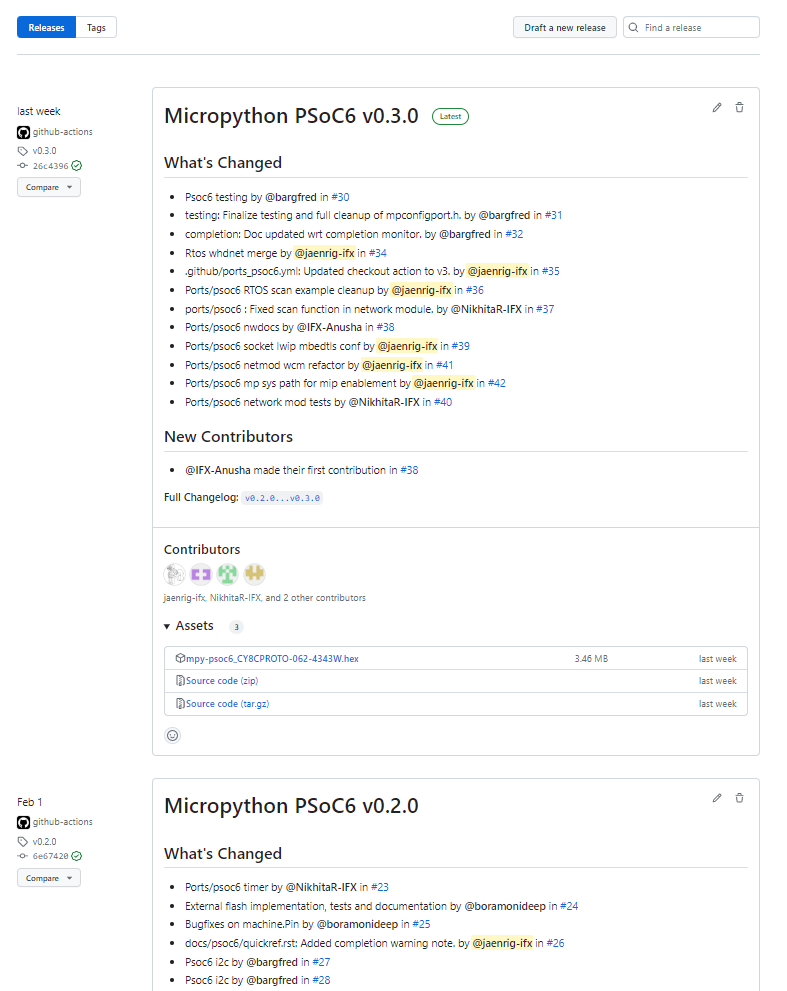
If you want to setup the device with a previous firmware version, you can check the list of available releases in the GitHub release section.
The device-setup command can also assist you with this process. In this case, the board and the desired
version needs to be passed as arguments.
$ python mpy-psoc6.py device-setup -b CY8CPROTO-062-4343W -v v0.1.1
Warning
Be sure to provide the board name as shown in the device-setup command when running in interactive mode.
Also, provide a valid tag that exists in the release section, in the format vx.y.z.
No fail-safe mechanisms or error verifications are (yet) implemented on the mpy-psoc6.py utility, and the script will fail to retrieve the necessary firmware file.
Updating the flasher firmware
The evaluation PSoC6™ boards include an integrated hardware programmer tool using KitProg firmware. Some older boards may come pre-flashed with KitProg version 2. For the MicroPython PSoC6™ port, KitProg version 3 is required, and the setup process will fail if version 2 is used.
In case of failure during device-setup, the option --kitprog-fw-update can be added to the command.
This will update the KitProg firmware to version 3 before flashing the MicroPython firmware.
$ python mpy-psoc6.py device-setup --kitprog-fw-update
Direct binary flashing
Another way to program the board is by directly providing the binary file. This can be done using the firmware-deploy command.
Specify the board and the path and name of the .hex file as follows:
$ python mpy-psoc6.py firmware-deploy -b CY8CPROTO-062-4343W -f pathtodir/mpy-psoc6_CY8CPROTO-062-4343W.hex
Erasing the device (external) file system
Some PSoC6™ boards include an external flash memory which is used by the MicroPython file system. This memory will not be erased when
reprogramming or erasing MicroPython firmware via device-setup or firmware-deploy.
Use the device-erase command to erase the external memory of your PSoC6™ device:
$ python mpy-psoc6.py device-erase
Warning
This command flashes the PSoC6™ controller with a custom program to delete the external memory. Thus, MicroPython will be removed from the microcontroller. Use any of the script commands described above to reinstall MicroPython.
Getting the firmware
The binary .hex files are available in the GitHub release section. All PSoC6™ firmware versions for each of the supported boards can be found there.
Other installation methods
Cypress Programmer
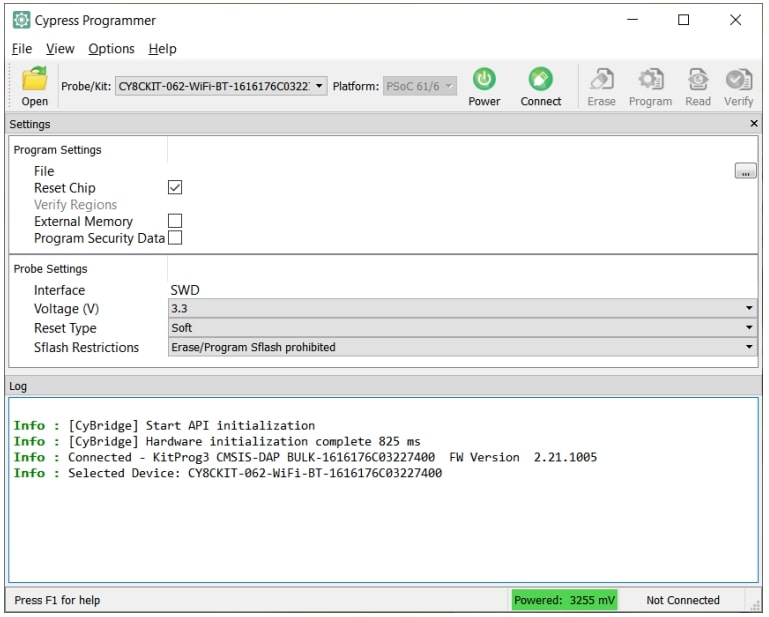
Alternatively, you can directly flash the firmware binary file with the Cypress Programmer It allows you to program the PSoC6™ microcontroller family with just a few clicks from your Windows, Linux, or MacOS machine. Follow the instructions at the provided link to download and install the tool.
After that, select the downloaded MicroPython firmware .hex file to be deployed on the PSoC6™. Then, in the upper menu, select the connected Probe/Kit, click on Connect, and finally click on Program. The log section will show the progress and notify you when the firmware deployment on the controller is completed.
For a detailed description on how to use the Cypress Programmer tool, please consult the Cypress Programmer User Guide.